

User Manual
Bazefield Data Management
INNHOLDSFORTEGNELSE
3 INTRODUCTION
This is a document on the Data Management tool in Bazefield. This tool is for creating different manual jobs and gives you the history of these jobs.
4 DATA MANAGMENT
Data Management tool is located under the Administration tab. The Synchronization view is used for creating jobs and reviewing past jobs. The filter tool is used within this view.
 NB! To learn how to use the filter tool see the portal manual (BF-01-UM-001 User Manual Bazefield Portal).
4.1 JOB HISTORY
This shows a list of all the jobs that have been created in the system sorted by their start time. The table shows the id of a job, when the job was started and when the job was ended and it shows what type of job it was and the state they are in.
To filter the view then use the filter tool in the top right next to the login name and help. The filter tool can filter based on date, owner, asset type, site, asset model and asset. When the filter is active a yellow box is shown indicating only a subset of the jobs is displayed.
The blue box at the top of the view shows the number of unfinished jobs.
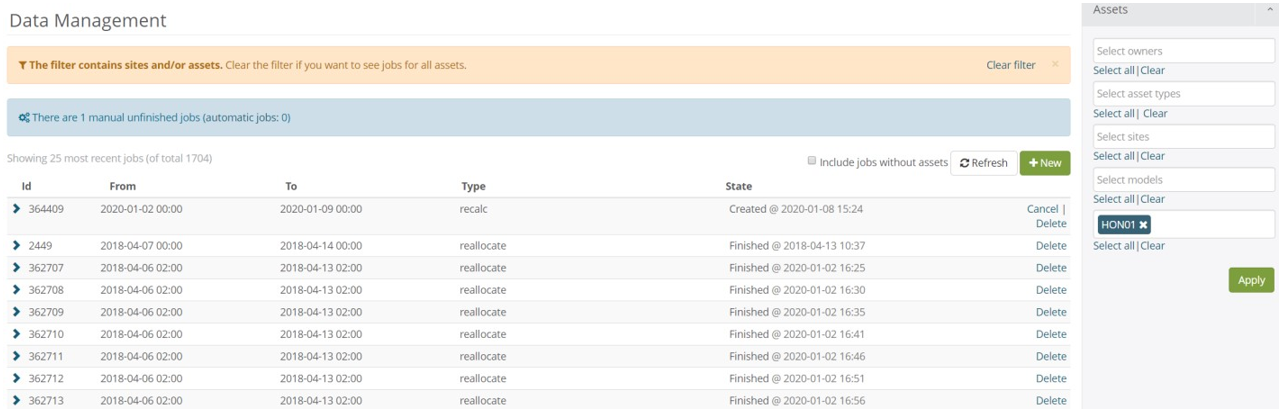
Figure showing unfinished jobs.
 Figure showing the filter tool button.
 To learn how to use the filter see the user manual “BF-01-UM-001 User Manual Bazefield Portal”. The filter tool is listed under chapter 5.4 filter.
4.1.1 CREATE JOB
Click the new button to create a new job. The use then filter to select the time interval and assets.
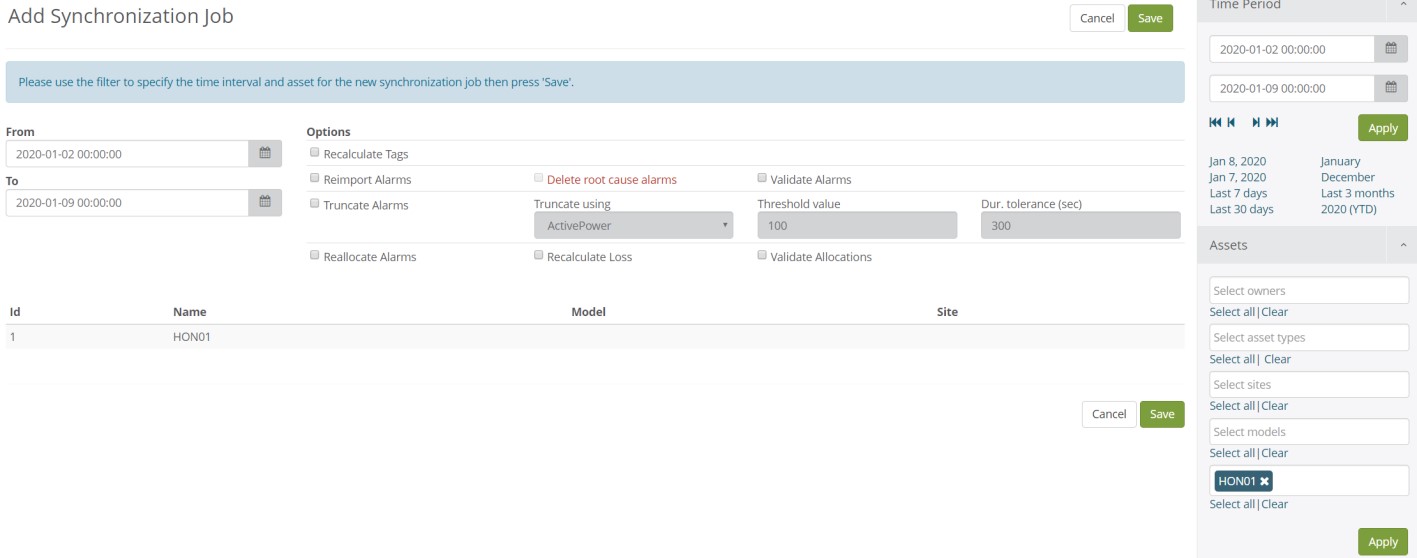
Figure showing the add job options
 Figure showing the new job button.
Set interval
When creating a new job then set From and To parameters in the filter to the desired interval and click apply in the filter. The job will then only affect the desired interval.
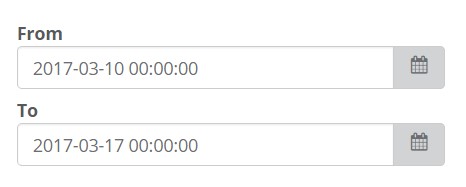
Figure showing the date picker.
Set assets
When creating a new job use the filter to select the assets which should be handled by this job and click apply in the filter.
Set options
There are various options for what the data management job should do.
Category | Ooptions | Description |
Recalculate | Recalculate Tags | Recalculate all calculation tags for the specified assets |
Reimport | Reimport Alarms | Reimport alarms from stored tag values or directly from ODBC depending on configuration. Existing alarms that are NOT used as a root cause for an allocation will first be deleted for the specified time period and new alarms imported. |
Delete root cause alarms | If this option is checked then the system will also delete alarms that are used as a root cause for an allocation. Use this option is we want to start from scratch with a completely new set of alarms. This means that any manually configured root causes will also be deleted. | |
Validate Alarms | Clears all previous uncertain stop times. Set new uncertain stop time for alarms if a succeeding OK alarm happened before the alarm end time or if the alarm did not have an end time. | |
Truncate | Truncate Alarms | Truncate end time for alarm it if the power production is started earlier then the alarm end time. The power output must be above a certain threshold configured in the backend. |
Reallocate | Reallocate Alarms | Allocate alarms into categories. All existing auto generated allocations will be deleted, but the manually created allocations will be kept intact. If there are manual allocations that are missing their root cause alarms because it was deleted by “Delete root cause alarms” then the system automatically tries to find the appropriate first alarm. |
Recalculate Loss | Recalculate loss for existing allocations. | |
Validate Allocations | Marks allocations as suspect if category is marked unavailable but the turbine is actually producing |
4.1.2 CANCEL/DELETE JOB
A job can be cancelled by clicking “Cancel” in the job list as long as it’s in the “queued” state. Then the job will not be executed. If the job has already started then it cannot be cancelled.
A job can be deleted by clicking “Delete” in the job list. If the job has not yet started it will be immediately cancelled and removed from the list. If the job is ongoing it will still continue its current “step” and then be deleted from the list. If the job is already finished then it will just be removed.