

User Manual
Operations Management
INNHOLDSFORTEGNELSE
2 ABOUT THIS DOCUMENT
The Operations Management module contains a set of tools for managing tasks, documents and comments in Bazefield. The tools are found throughout various applications in the system, and an overview is found in the Operations Management application, located in the Operations menu group.
3 TASKS
The Tasks list in Operations Management lists all tasks in Bazefield.
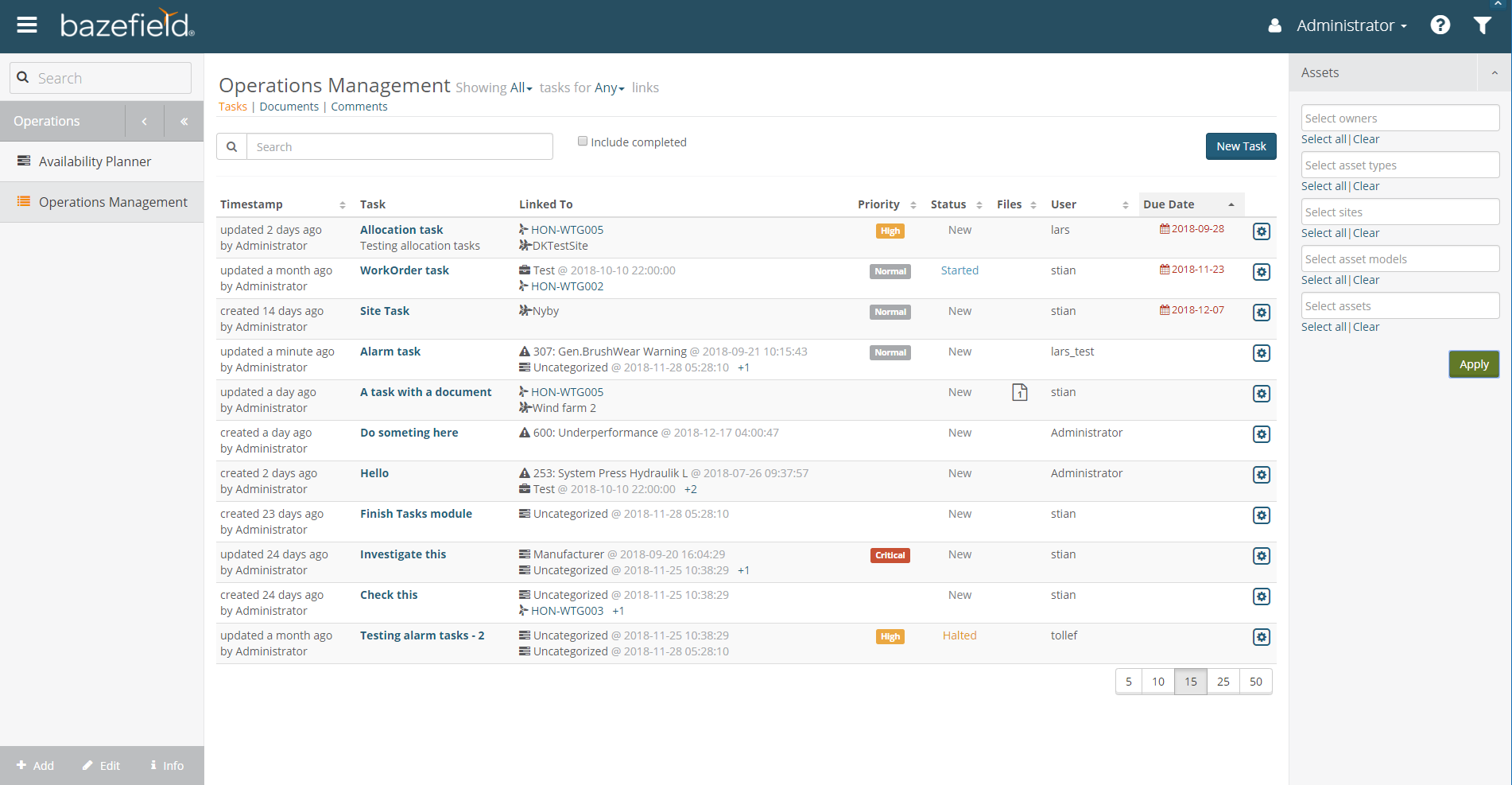
Figure 1: The task list
Tasks may be linked to assets, sites, work orders, alarms and allocations, or they may be standalone.
The task list may be filtered on the logged in users assigned tasks using the drop down in the heading. Tasks may also be filtered on link types. The bazefield filter allows filtering on sites and assets. The search field allows further filtering.
The list is ordered by Due Date as default, but may also be ordered by timestamp, priority, number of attached documents and users.
Completed tasks are not shown by default, but may be accessed by checking the Include completed checkbox.
Tasks that are linked to assets or sites that the logged in user does not have access to, will not be displayed.
The following columns are displayed for the result set:
Column | Description |
Timestamp | When the task was created or last updated |
Task | Task title and description (if set). The title is clickable and will open the edit dialog. |
Linked To | If the task is linked to one or more assets, sites, work orders, alarms and/or allocations, it is listed here. The list is limited to two items. If a task has more than two linked items, a indication of how many more links is shown (ex +2). Open the task dialog to see all items. If the linked item has a timestamp (for example an alarm or an allocation) the start time is also shown. |
Priority | The task priority (if set) |
Status | The task status |
Files | How many documents that are attached to the task |
User | The assigned user |
Due date | The task due date (if set). If the task is overdue, this date will be shown in red. If the due date is the same as the current date, it will be displayed in yellow. |
3.1 EDIT DIALOG
New tasks are created from the Operations Management application, or from the following applications: Availability, Asset Operations, Alarm Log or Site Activity (work orders).
When creating a new task, the logged in user will be pre-selected in the Assigned select box.
The status field contains the following options: New, Started, Halted and Complete. New will be pre-selected for new tasks.
The priority field contains the following options: Critical, High, Normal and Low.
The dialog also displays when the task was created and modified and by whom.
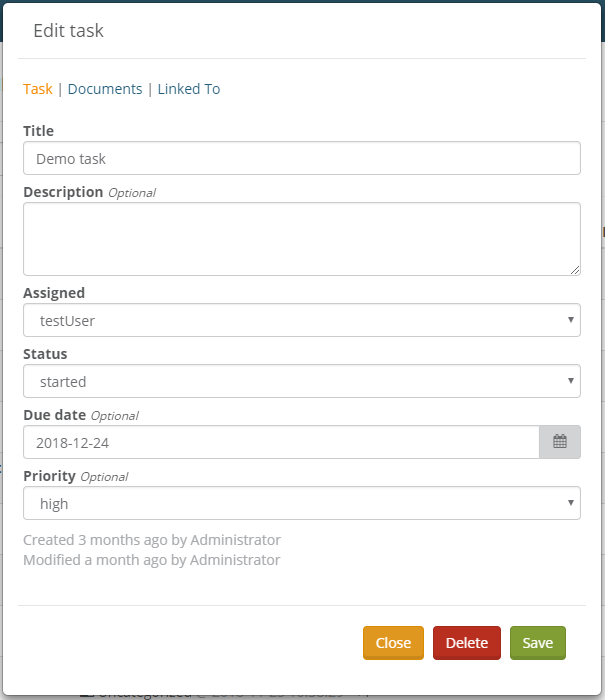
Figure 2: Task dialog
When editing an existing task, or saving a new task, the Documents tab will appear. From this tab, documents may be uploaded or existing documents may be attached. See the Document chapter for mor information.
The Linked To tab displays the linked items (if any). From this tab, one may also remove links.
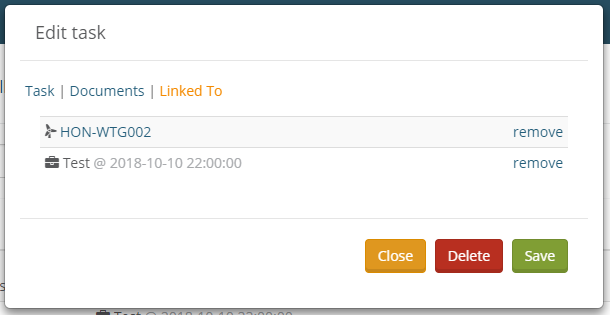
Figure 3: Edit task - Linked To tab
3.2 ATTACHING EXISTING TASKS
Existing tasks may be attached to assets, sites, work orders, alarms and/or allocations. This can be done from the following applications: Availability, Asset Operations, Alarm Log or Site Activity (work orders).

Figure 4: Asset tasks
In the expanded view (Figure 4: Asset tasks), in the Tasks tab, a list for the item tasks is displayed.
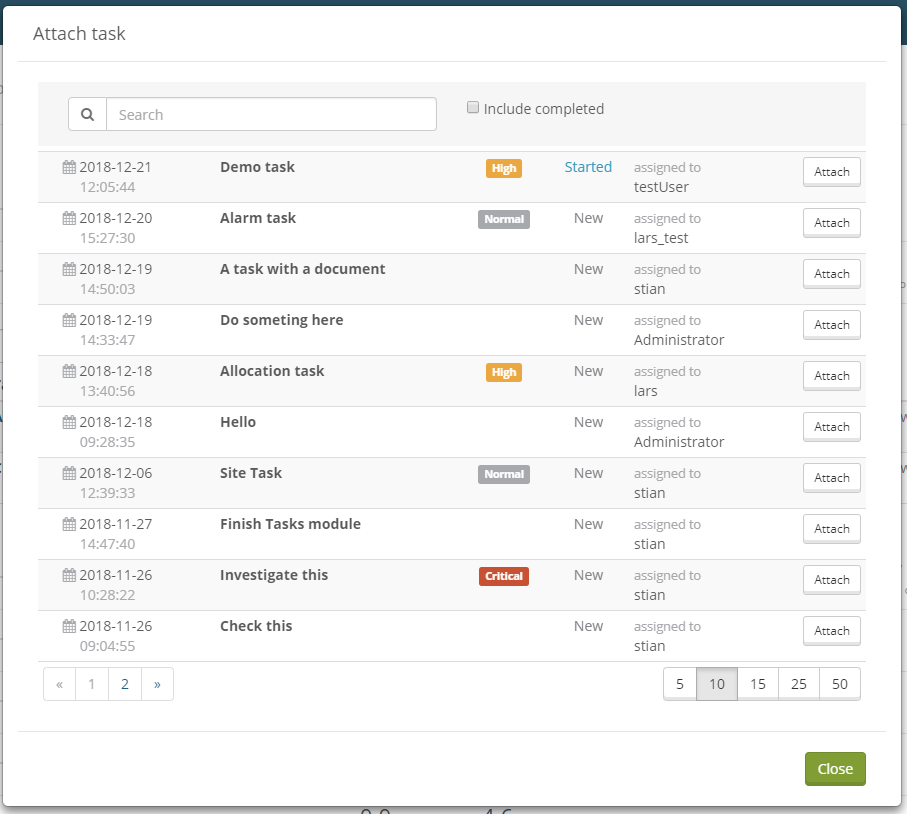
Figure 5: Attaching existing tasks
By clicking the Attach Task button, a dialog with a list of all active tasks in Bazefield appears (Figure 5: Attaching existing tasks). Clicking the Attach button for a task, the selected task will be linked to the item and appear in the list when clicking the Close button.
4 DOCUMENTS
Documents in Operations Management lists all uploaded documents in Bazefield.
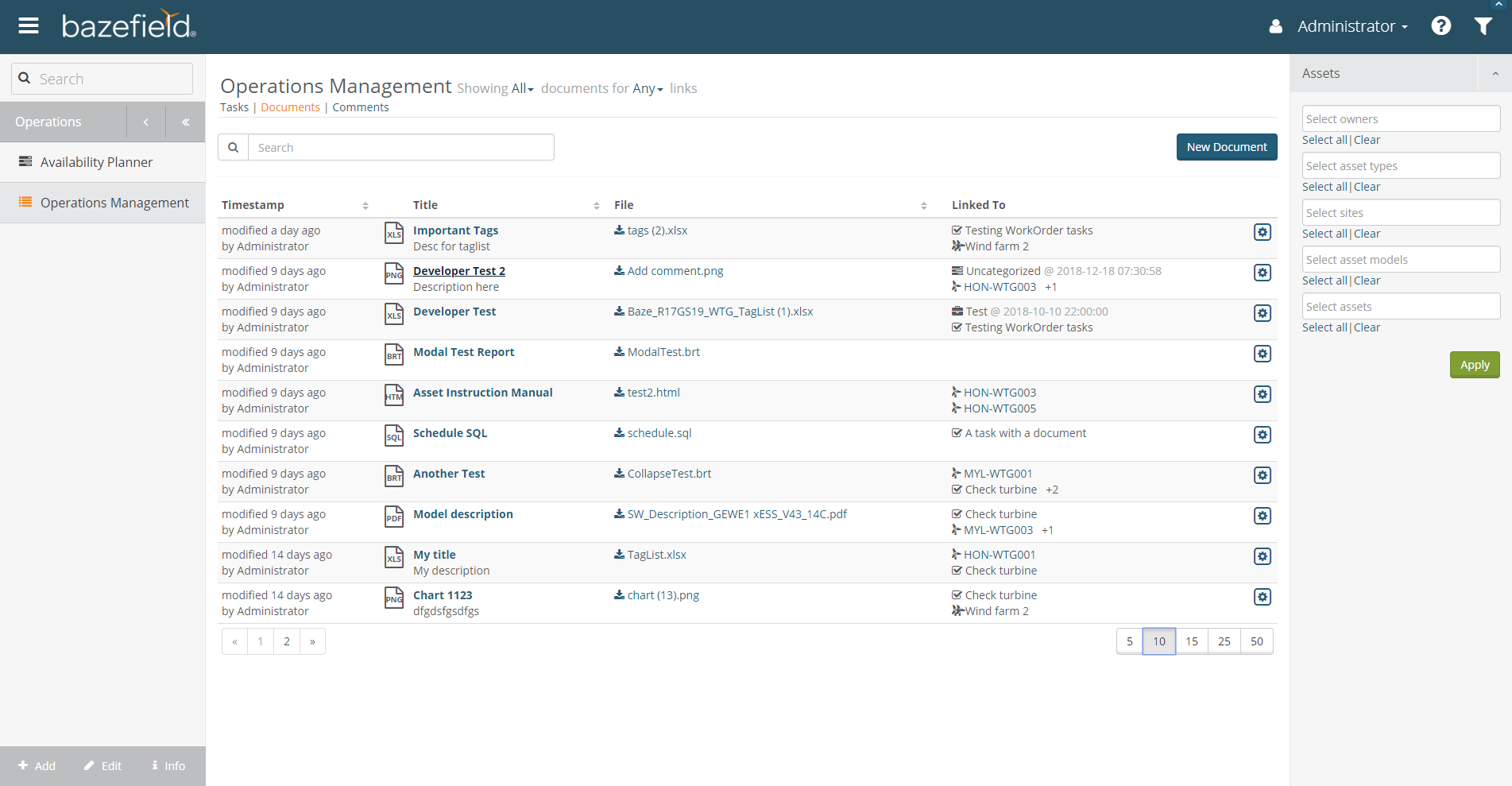
Documents may be linked to assets, sites, work orders, alarms, allocations and tasks, or they may be standalone.
The list may be filtered on the documents created by the logged in user, using the drop down in the header. The list may also be filtered on link types. The bazefield filter allows filtering on sites and assets. The search field allows further filtering.
The document list is ordered by TimeStamp (created or modified) as default, but may also be ordered by title and filename.
Documents that are linked to assets or sites that the logged in user does not have access to, will not be displayed.
Clicking on the filename will download the file.
The following columns are displayed for the result set:
Column | Description |
Timestamp | When the document was created or last modified |
Title | Title and description (if set). The title is clickable and will open the edit dialog. |
File | The documents filename. By clicking on the link, the document will be downloaded. |
Linked To | If the document is linked to assets, sites, work orders, alarms, allocations or tasks, it is listed here. The list is limited to two items. If a document has more than two linked items, a indication of how many more links is shown (ex +2). Open the task dialog to see all items. If the linked item has a timestamp (for example an alarm or an allocation) the timestamp for the item is shown. |
4.1 EDIT DIALOG
New documents are uploaded from the Operations Management application, or from the following applications: Availability, Asset Operations, Alarm Log or Site Activity (work orders). Documents may also be created from a task.
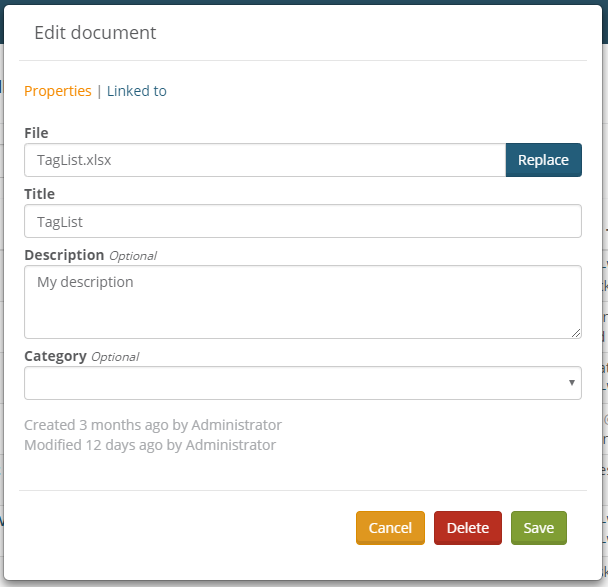
All kinds of files may be uploaded.
The dialog also displays when the task was created and modified and by whom.
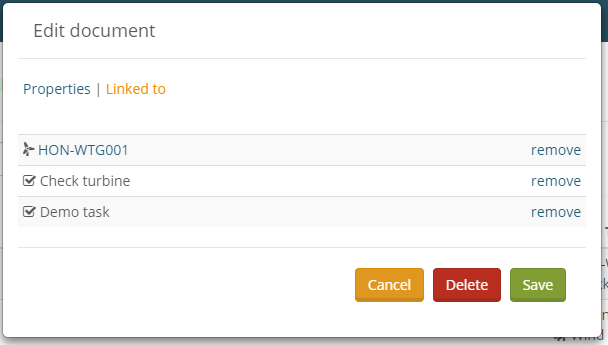
The Linked To tab displays the linked items (if any). From this tab, one may also remove links.
4.2 ATTACHING EXISTING DOCUMENTS
Existing documents may be attached to assets, sites, work orders, alarms and/or allocations. This can be done from the following applications: Availability, Asset Operations, Alarm Log or Site Activity (work orders). Documents may also be attached to tasks.
In the expanded view (Figure 4: Asset tasks), in the Documents tab, a list of the item documents is displayed.

Figure 6: Asset documents
By clicking the Attach Document button, a dialog with a list of all documents appears (Figure 5: Attaching existing tasks). Clicking the Attach button for a document, the selected document will be linked to the item and appear in the list when clicking the Close button.
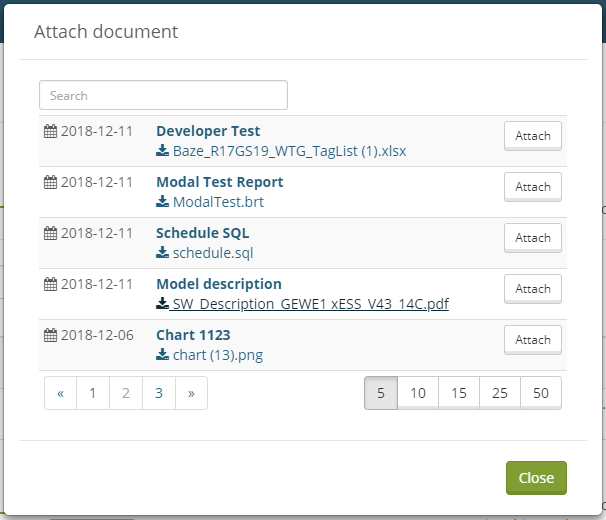
Figure 7: Attaching existing tasks
5 COMMENTS
The Comments tab in Operations Management application is the main overview for comments in the system. Comments can additionally be created and displayed in applications Alarm Log, Asset Operations and Availability.
The Comments tab in Operations Management lists all comments that is included after filtering.
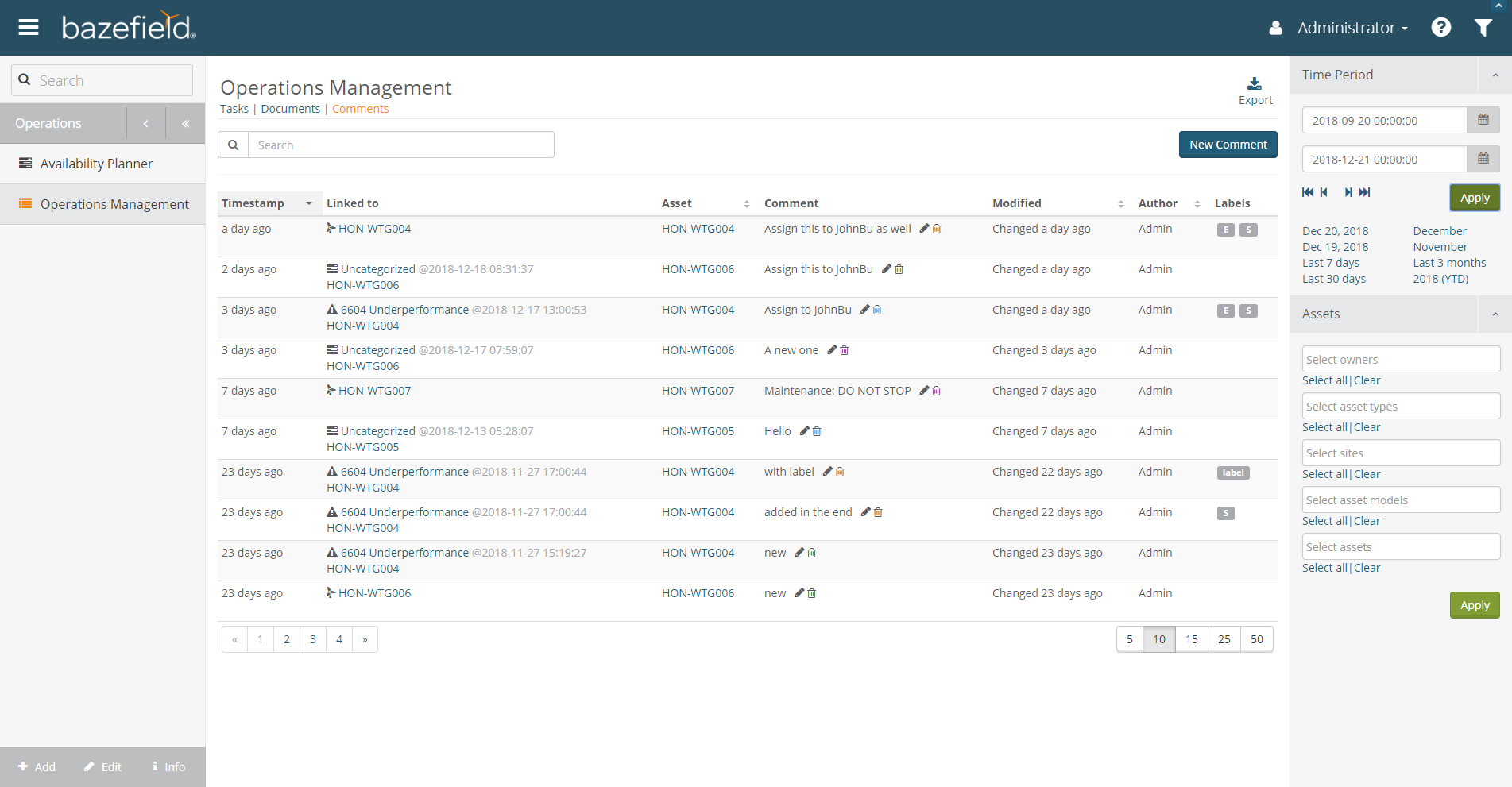
Figure 6: Comments
The list may be filtered on sites, assets, time period etc. using the standard filter functionality in the filter window opened from the filter button in the top toolbar. The multi purpose search field in the application allows further filtering on comment contents, author, allocation category or alarm description (the latter two only applies when a comment is attached to an allocation or an alarm log entry).
The following columns are displayed for the result set:
Column | Description |
Timestamp | The timestamp is the comment’s position on the timeline and is defined automatically when a comment is being created. The position on the timeline depends on whether the comment is created for a past alarm/allocation incident or not. In the former case, the comment’s position on the timeline will be identical to the end time of the alarm/allocation incident. In the latter case, the comment’s position on the timeline will be identical to the time of creation. |
Linked To | A comment is always linked to an asset and in addition optionally linked to an alarm/allocation incident. If a linked item has a timestamp (for example an alarm or an allocation), the start time is also shown. |
Asset | Shows the linked asset’s short name. |
Comment |
|
Modified | The time for the last update made for the comment. |
User | The user who created the comment. |
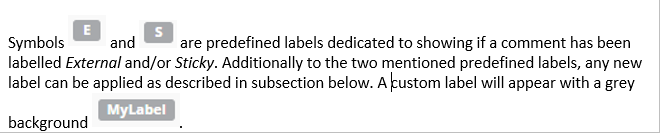
Labels |
|

The result set can be sorted by clicking the headers of a subset of the columns listed.
5.1 CREATING AND EDITING COMMENTS IN OPERATIONS MANAGEMENT APPLICATION
New comments can be created and existing comments can be edited from the Operations Management application. New comments can additionally be created in the applications Availability, Asset Operations or Alarm Log.
Click the New Comment button in Operations Management application to open the Create new comment dialog. The dialog has the following inputs:
Input field | Description |
Asset | Comments created from Operations management application needs to be attached to an asset. Select an asset from the drop down menu displaying the assets selected in the portal filter. |
Comment text | The comment text. |
External | A checkbox to tag a comment as external. This tag has no logic attached to it in Bazefield, but can be used by customers to distinguish between public/private comments. |
Sticky | A checkbox to tag a comment as sticky. This tag is used by Asset Operations application, which has a dedicated field for the latest comment for each asset. When an asset changes operation state, then the field will revert to displaying the latest sticky comment. |
Labels | Type in any desired keyword and hit enter key to define a label. Any number of labels can be entered. |
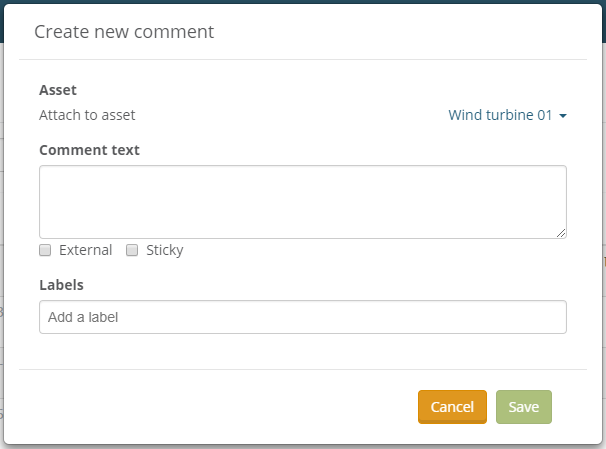
Figure 7: Create new comment dialog in Operations Management application

Input/field | Description |
Dialog title | The dialog title is Comment for asset/alarm/allocation depending on whether the comment is attached to an alarm or allocation incident, or only attached to an asset. |
Asset | Displays the asset that the comment is attached to. The asset cannot be changed after the comment has been created. |
Comment text | As described for Create new comment dialog above. |
External | As described for Create new comment dialog above. |
Sticky | As described for Create new comment dialog above. |
Labels | As described for Create new comment dialog above. |
Changed | Presents when the comment was last modified and by whom. |
On timeline | The timestamp for the comment, see description of column Timestamp above. |
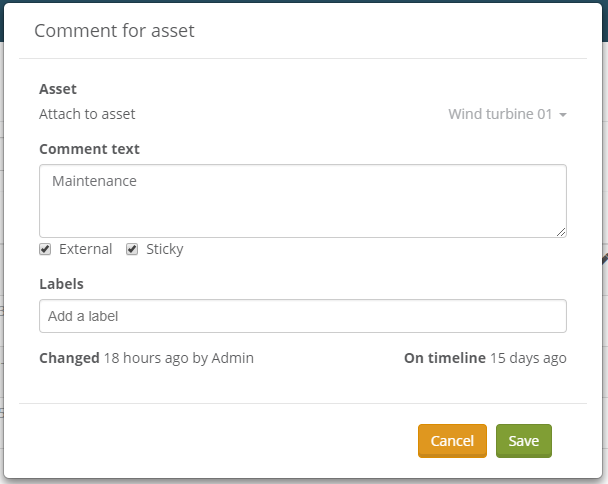
Figure 8: Edit comment dialog in Operations Management application
5.2 EXPORT
Click Export button to export comments to excel workbooks.
